


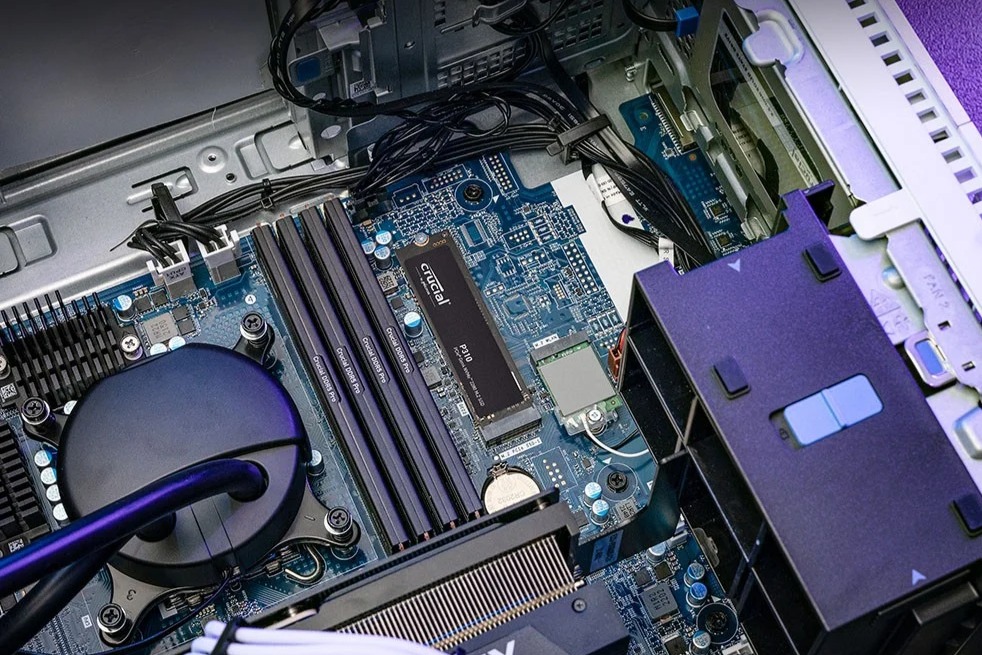
Internal SSDs have become the foundation of IT infrastructure in companies of all sizes, as they provide fast data transfer and are virtually reliable. SSDs are also increasingly chosen over traditional HDDs. The right choice of SSD affects performance, reliability, and data security in daily operations.
This guide is intended for individuals and companies planning to upgrade computers, laptops, or servers by replacing or purchasing a new internal SSD. Check what parameters internal SSDs can have and which indicate premium-class drives, and which are decent budget options. The guide also includes a comparison of popular models in 2026.
What is an internal SSD?
An internal SSD (Solid State Drive) is a semiconductor data storage device that uses NAND flash memory mounted inside a computer. Unlike a traditional HDD, it does not have mechanical components. This
means no noise, resistance to mechanical damage, and access times measured in microseconds instead of milliseconds.
Mounted directly in the case of a computer, laptop, or server, SSDs come in 2.5” SATA or compact M.2 NVMe formats. They serve as the main system storage, where the operating system and applications run. SSDs operate silently and generate less heat.
Main advantages of SSDs in a corporate environment:
- Faster application loading (Office, ERP, CRM)
- Lower risk of failure (no mechanics)
- Lower power consumption in fleet laptops
- Higher responsiveness due to high IOPS
When choosing an internal SSD, it is worth considering parameters tailored to specific applications in our organisation. Here are the key points to pay attention to when deciding to purchase an internal hard drive:
- SSD is the standard in 2026: Internal SSDs (SATA 2.5” and M.2 NVMe) are becoming system drives in companies, while HDDs mainly serve as storage and backup.
- Typical capacities: Office laptops 512 GB to 1 TB, desktops 1-2 TB, workstations and servers 2-8 TB.
- Key parameters: Interface (SATA or NVMe), format, PCIe generation (3.0/4.0/5.0), sequential speed, IOPS, TBW, and MTBF indicators.
Now that we know the basics, let’s move on to the key parameters to consider when choosing a drive.
Parameters of internal SSDs
Each SSD has many parameters describing its features, but the most important ones that decision-makers should pay attention to are:
- Capacity is expressed in GB and TB, indicating the amount of storage space on the drive. Drives are available in various capacities, from 256 GB to 8 TB and more. Our clients typically choose capacities based on their intended use:
- office laptop: 512 GB – 2 TB
- workstation: 1 TB – 8 TB
- server (RAID): 1.92 TB – 7.68 TB (incomplete values result from using multiple drives)
- Interface determines how the drive communicates with the computer’s motherboard. The most commonly encountered interfaces are SATA III and NVMe PCIe (Non-Volatile Memory Express, PCI Express).
- SATA III is the oldest interface widely used in HDDs and later SSDs. It is slower but is also a more budget-friendly option. It is most often chosen for older laptops and computers.
- NVMe PCIe is a modern interface found in newer laptops and PCs used for working with large files. Its advantage is that it allows for much higher data transfer speeds than SATA III, as it uses direct access to NAND memory.
- PCIe refers to the version of the PCI Express bus, which affects bandwidth, or the maximum data transfer speed, between the SSD and the motherboard. The higher the generation (3.0, 4.0, 5.0), the greater the bandwidth and the faster the drive.
- Read and write speed is one of the most important parameters that determine how quickly the SSD can process large files (e.g., copying them, installing programs, etc.).
- 550 MB/s, typical for SATA III SSDs. This speed is sufficient for everyday use, such as editing documents or storing data.
- 12+ GB/s, typical speed for NVMe SSDs for more complex tasks, such as working with large databases or video editing.
- IOPS (Input/Output Operations Per Second) is a measure that indicates the number of read and write operations that the SSD can perform in one second.
- 50K IOPS: typical for SATA III. For the average user, a drive with this parameter provides sufficient performance; it will be suitable for browsing the Internet or running office applications.
- 1M+ IOPS: typical measure for NVMe drives. It is best suited for demanding tasks, such as fast data analysis, working in professional applications, or heavy server and database loads.
- TBW (Total Bytes Written) is an indicator of the SSD’s durability, which specifies the total amount of data that can be written to the drive over its entire lifespan.
- 300 TBW: Typical value for basic SSDs intended for office tasks. Such drives are sufficient for standard use for 3 to 5 years.
- 2400 TBW: High TBW values are typical for more professional SSDs designed for servers, workstations, or advanced applications. Such drives can withstand many years of intensive use.
- MTBF (Mean Time Between Failures) is a reliability indicator. This value is theoretical and indicates the expected average number of hours of operation of a given device before failure becomes likely. For the average user, an MTBF in the range of 1.5-2 million hours is a very high value, suggesting that the SSD should operate for many years without issues if used in a standard manner.
To organise the knowledge, below is a table summarising the key parameters of internal SSDs.
| Parameter | What it means | Values in 2026 |
| Capacity | Space for data | 256 GB – 8 TB+ |
| Interface | Communication with the motherboard | SATA III, NVMe PCIe |
| PCIe Generation | Bus bandwidth | 3.0, 4.0, 5.0 |
| Read/Write Speed | Sequential speed | 550 Mb/s – 12+ Gb/s |
| IOPS | Random operations per second | 50K – 1M+ |
| TBW | Endurance | 300 – 2400 TBW |
| MTBF | Mean time between failures | 1,5 – 2 mln hours |
Recommended internal SSDs in 2026
I have selected several SSDs from top manufacturers that are the most popular among our clients in 2026. The list includes SSDs from Crucial, HPE, Sandisk, and Samsung:
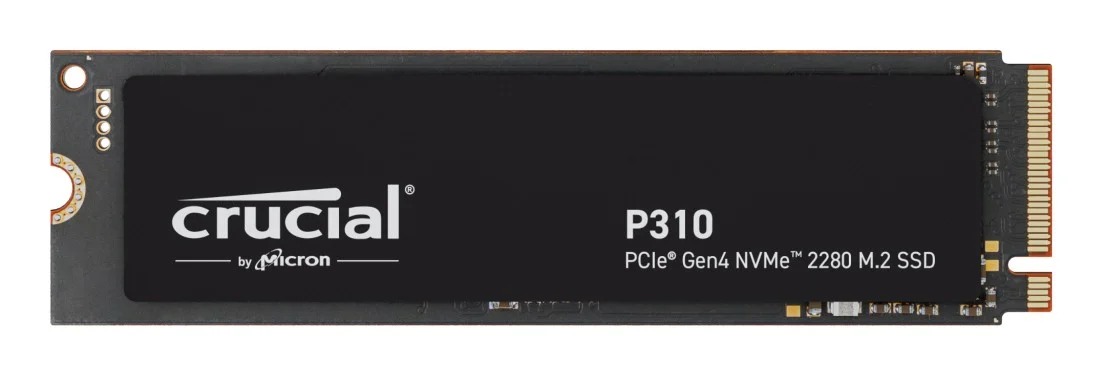
Crucial P310 PCIe 4.0 NVMe 2280 M.2 for upgrading corporate computer fleets
Crucial P310 internal SSD with a capacity of 1 TB and PCIe 4.0 NVMe interface is an excellent choice for workstations requiring instant data access, multitasking, and handling office applications and accounting systems. The drive is a very good solution for upgrading corporate computer fleets – both desktops and laptops. In the case of portable computers, we will notice an extended battery life without compromising stability.
The P310 model stands out with a lower operating temperature (compared to previous generations), which translates to a longer lifespan and trouble-free operation of the hardware itself. This model is also recommended due to its price-to-performance ratio.
Crucial P310 PCIe 4.0 NVMe 2230 M.2 for ultra-thin laptops
The Crucial P310 model in the M.2 2230 version has the same chip as the P310 M.2 2280 (the SSD above), but it has a shorter casing. This is a key difference, as this format fits completely different business applications.
This drive is dedicated to devices where the standard M.2 2280 format is physically too long. It will fit in ultra-thin and compact laptops (e.g., Dell Latitude series, Lenovo ThinkPad X1, HP EliteBook and ProBook). This disk format will be suitable for upgrading or replacing the storage in already functioning devices of this type in the company.

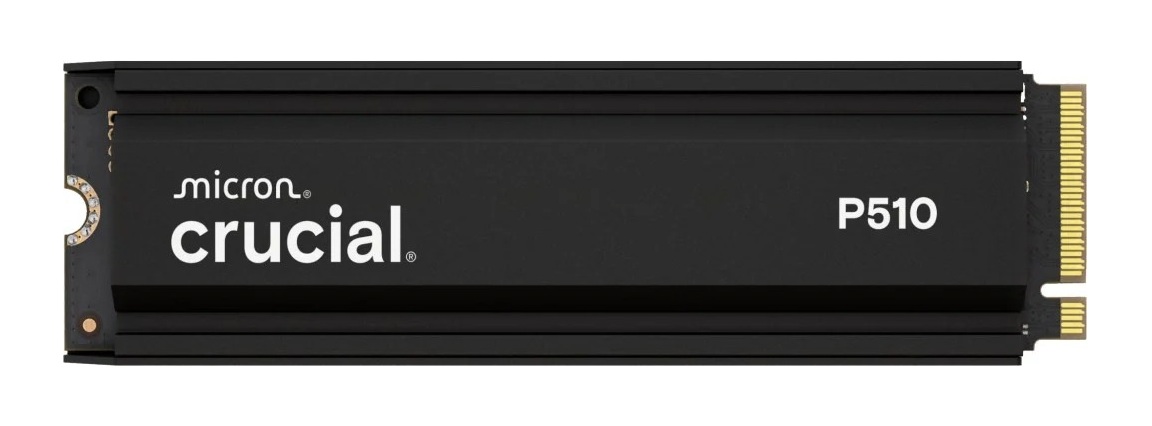
Crucial P510 PCIe 5.0 NVMe M.2 with heatsink for High-End workstations
The Crucial P510 model with a capacity of 1 TB is an SSD based on the new generation interface PCIe 5.0 NVMe. This drive is dedicated to High-End workstations. It is ideal for professionals working with CAD/CAM engineering software, high-resolution video editing, and data set analysis (Big Data). Business clients will appreciate the presence of a factory heatsink, which effectively dissipates heat. This ensures maximum stability and performance even during long hours of continuous and demanding computations.
For companies looking for powerful computing power (outside the gaming sector), key parameters will be read and write speeds: read up to 11,000 MB/s and write up to 9500 MB/s. With such parameters, production systems will load quickly, and project renders will be completed much faster than with drives with lower parameters.
HPE SATA 6G Read Intensive LFF LPC Multi Vendor for servers
The HPE SATA LFF LPC SSD is a solution for companies needing reliable data storage in server environments. It features a capacity of 960 GB and a SATA interface. It is suitable for read-intensive applications, such as file servers, databases, or virtualisation environments. Due to its high reliability, it is a very good choice for data centres and systems requiring long-term stability. Moreover, it is compatible with HPE infrastructure, making it easy to integrate with existing IT systems.

Samsung 990 EVO Plus PCIe 4.0 NVMe V-NAND TLC M.2 SSD for corporate environments
Samsung 990 EVO Plus 1 TB is an SSD in the M.2 2280 format with PCIe 4.0 NVMe interface, which stands out from the competition primarily due to hardware data encryption. Support for TCG Opal 2.0 and 256-bit AES encryption makes it a drive dedicated to companies processing sensitive data – in the medical, legal, financial sectors, or anywhere compliance with GDPR is required.
The 990 EVO Plus offers read speeds of up to 7150 MB/s and write speeds of up to 6300 MB/s, ensuring comfort even when handling large encrypted data sets.

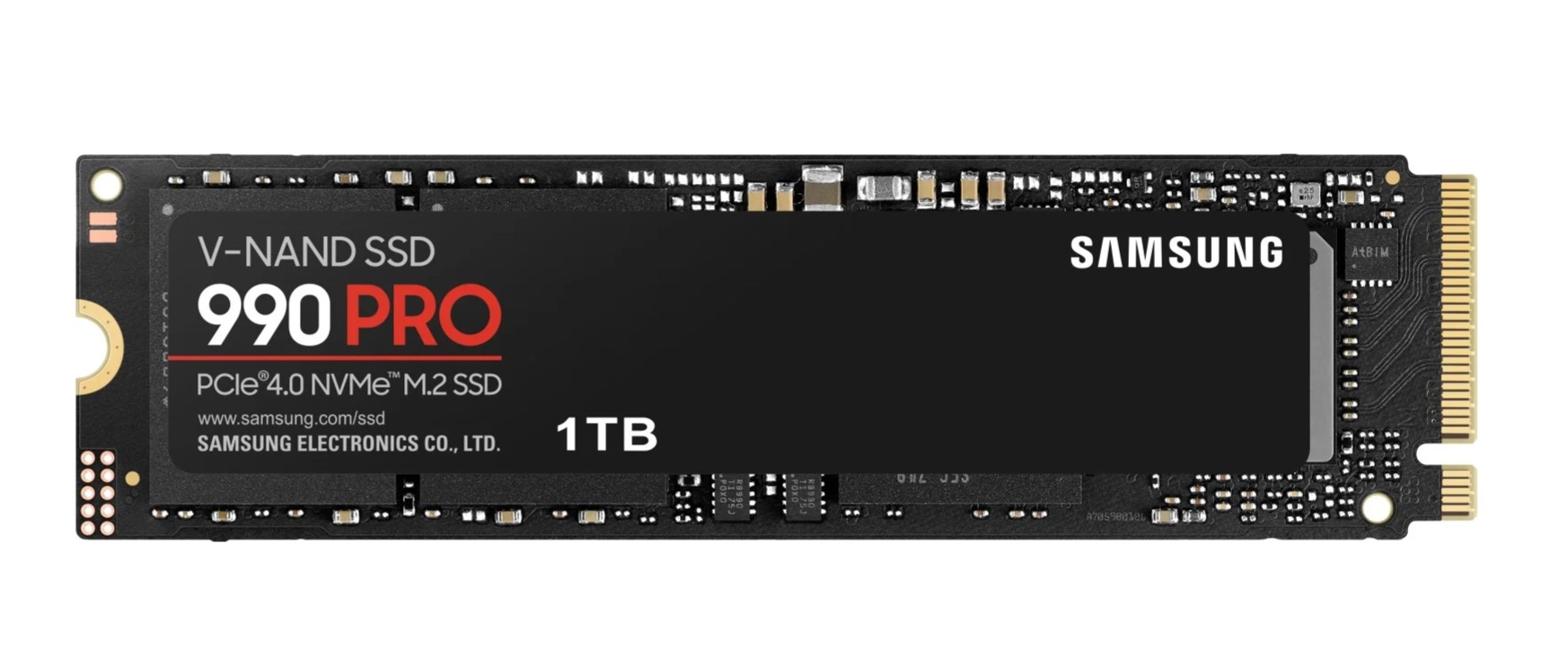
Samsung 990 PRO PCIe 4.0 V-NAND MLC NVMe M.2 for virtualisation
The SSD Samsung 990 Pro 1 TB is Samsung’s flagship NVMe drive in the M.2 2280 format with PCIe 4.0 and NVMe 2.0 standard. It features Samsung’s own controller, which ensures exceptional stability and performance during prolonged, intensive operations. This drive is dedicated to advanced workstations, file servers in small businesses, and virtualisation environments, where a high number of random input/output operations directly affects the smooth operation of the entire system.
The random performance of the 990 Pro reaches up to 1,200,000 read IOPS and 1,550,000 write IOPS. These parameters are crucial for the responsiveness of databases, ERP systems, and environments with multiple concurrently running virtual machines. The sequential write speed reaching 6,900 MB/s reduces the time for backups and transferring large data sets.
Samsung 870 EVO SATA III V-NAND for upgrading older corporate hardware
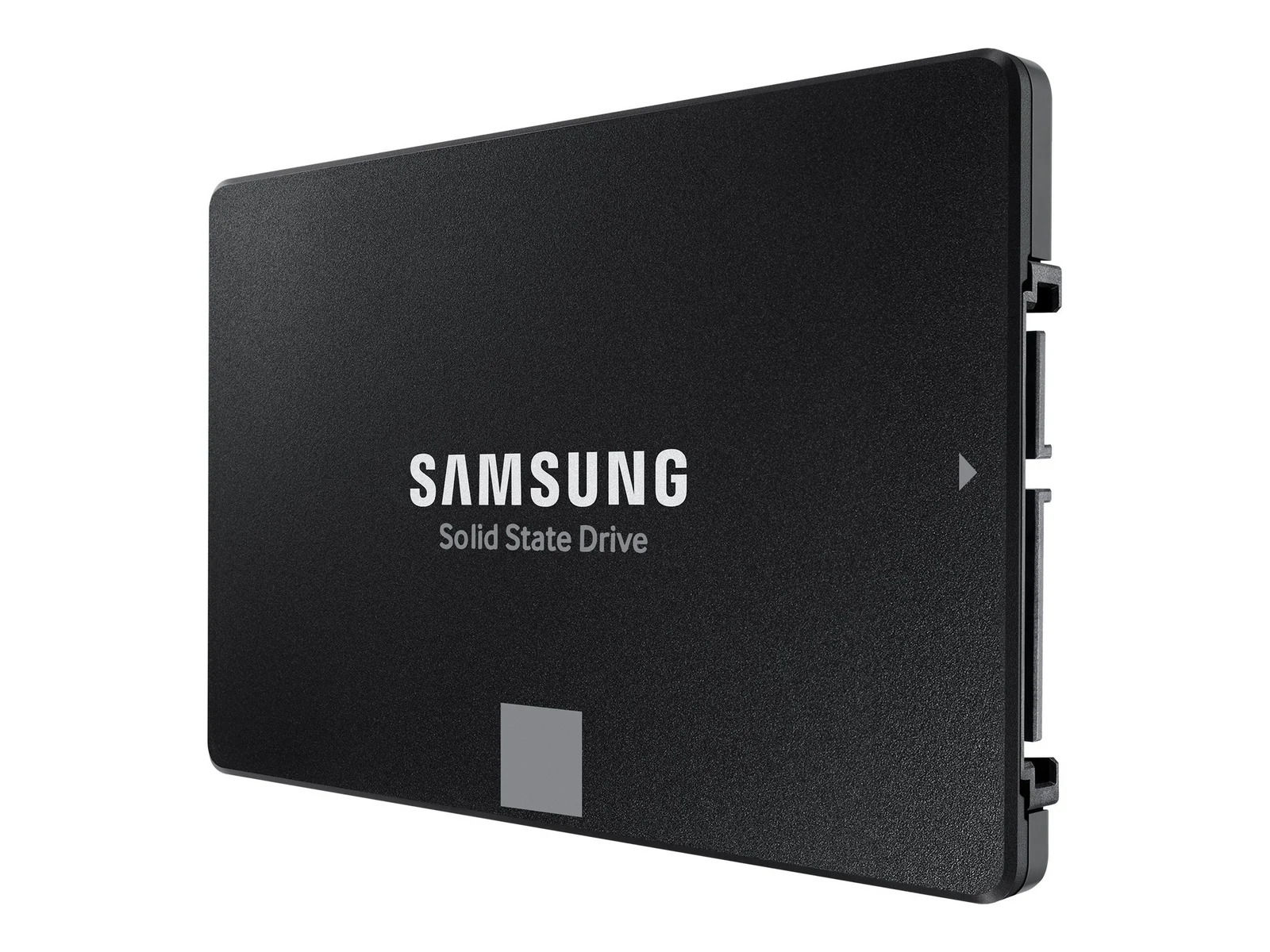
Samsung 870 EVO 500 GB is a drive in the classic 2.5″ SATA III format, which is particularly suitable as a tool for upgrading older corporate hardware. Replacing HDDs with this model is one of the most cost-effective ways to extend the lifespan of a fleet of computers that do not have an M.2 NVMe slot. After the replacement, users will immediately notice the difference in boot time and application loading.
The drive supports AES 256-bit and TCG Opal 2.0 encryption, making it a secure solution for companies processing confidential data. Read speeds of up to 560 MB/s and write speeds of up to 530 MB/s ensure efficient handling of office applications, ERP systems, and databases during daily operations.
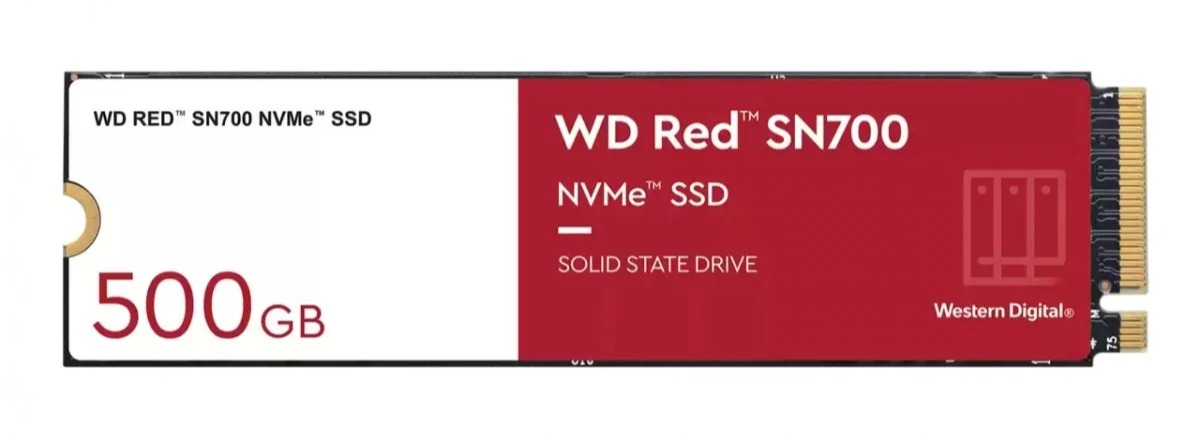
Sandisk Red SN700 PCIe 3.0 NVMe M.2 fast SSD for NAS devices
The SSD Sandisk Red SN700 has been designed specifically for NAS devices operating 24/7. The first such drive in our selection.
It is an internal SSD with NVMe M.2 2280 created for one specific task: to work as cache or data storage in NAS devices. It fits into NAS servers from QNAP or Synology, where it serves as a fast cache speeding up data access for the entire team. It will be ideal for companies where many employees simultaneously use shared network resources – project files, databases, or backups.
Standard NVMe SSDs are designed for single-user and sequential workloads. The Red SN700 is optimised for multi-threaded, random data access. Its durability is up to 1000 TBW, and the declared time is up to 1,750,000 hours MTBF. This storage should therefore withstand years of intensive, round-the-clock operation.
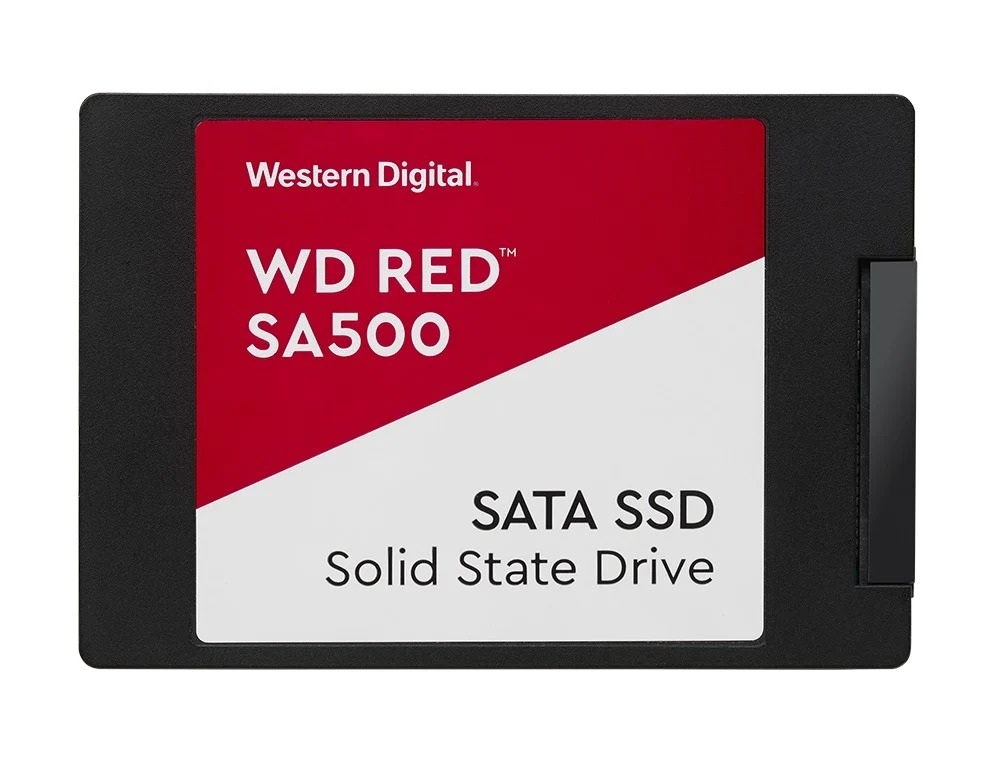
Sandisk Red SA500 2.5″ SATA III 3D NAND for data archiving
Sandisk Red SA500 is a 2.5″ SATA III drive designed for NAS devices operating 24/7 that store document archives, backups, or share files with remote employees. Unlike the WD Red SN700 described above – this model is intended for older NAS devices that do not support the NVMe interface and require HDD replacement with SSD. It is a practical choice for small and medium-sized businesses looking to increase reliability without replacing the NAS device itself with a newer model.
Common mistakes when choosing internal SSDs
Simply replacing an old drive with a new one without prior analysis can lead to performance issues or costly failures. The choice of SSD depends on compatibility with the motherboard, capacity, and application.
Compatibility of media
The first and most common mistake is not considering compatibility – M.2 SATA and M.2 NVMe drives are two different standards, and an older motherboard may simply not support PCIe 4.0 or 5.0. In thin laptops, there is also a physical issue: a drive with a heatsink may simply not fit in the casing.
Incorrect capacity selection
Another mistake is choosing too small a capacity. 256 GB fills up quickly with everyday office applications, and a filled drive requires faster replacement than planned.
Backup
A separate issue is the lack of a backup plan. SSDs fail less often, but they are not indestructible. A controller failure or user error can result in data loss that cannot be recovered. It is worth remembering this before deciding on just one storage device without a backup.
Cooling
Finally, there is the issue of cooling. A very fast NVMe drive enclosed in a tight casing without proper heat dissipation will trigger thermal throttling and will limit its speed to avoid overheating. The effect: an expensive drive behaves like a cheap one.
FAQ – Frequently asked questions about internal SSDs
Is it worth buying an SSD instead of an HDD? What is the difference between them?
Currently, SSDs have become the standard as system drives, while traditional HDDs mainly serve as cheap data storage and backups. SSDs operate on flash memory and have no moving parts, making them resistant to damage during shocks. In contrast, HDDs rely on mechanical platters and heads.
Applications or operating systems launch much faster on SSDs than on HDDs. Increasingly, HDDs are treated as additional long-term data storage, for example in NAS systems, while SSDs have become the solution chosen for daily work.
Does replacing an HDD with an SSD speed up the computer?
The system’s responsiveness (speed of response to clicks, window switching) will definitely improve even on several-year-old laptops. In servers, switching to SSD significantly reduces the response time of ERP/CRM applications with many simultaneous users.
The full effect also requires sufficient RAM and an updated system, but just replacing with an SSD will show a performance jump.
What is the lifespan of an SSD in corporate applications?
The lifespan of an SSD is determined by the TBW parameter, which indicates the amount of data that can be written, with SSDs generally lasting many years. In a typical office, the hardware platform ages faster than the SSD itself. Nevertheless, always use backups because any storage device can fail.
SSD M.2 vs SATA, what does the difference between them mean in practice?
SSD SATA is an older type of drive that uses the SATA interface, known mainly from traditional HDDs. Although it offers a significant speed improvement compared to HDDs, its maximum data transfer speed is around 600 MB/s, which is a limitation of the SATA interface itself.
SSD M.2 is a more modern solution that can use the PCIe interface instead of SATA. This allows SSD M.2 to offer significantly higher transfer speeds depending on the PCIe generation.
Do I need to buy an NVMe SSD for a regular office?
No. For typical office work, there is no need to invest in the fastest PCIe drives. Stability, capacity, and warranty are more important. Often, a better decision is to choose an SSD with moderate performance but larger capacity (e.g., an internal SSD 1 TB instead of 512 GB, at a reasonable price). Very fast NVMe drives make the most sense in workstations and servers.
So don’t overpay for capabilities you won’t use, but also don’t skimp on its parameters at the expense of stability.
Whether you are planning to replace drives in fleet laptops, desktops, or servers – the right choice of storage ensures fast data transfer and reliability for years.
If you need support in selecting an SSD for your infrastructure, contact Senetic advisors, who will help you choose a storage device that meets your requirements and budget.
